For contractors and owner-builders
Know where every job stands, without the spreadsheet.
CanBuildOS gives Ontario contractors and owner-builders one place for each job's budget, costs, estimates, invoices, photos and notes, with a portal your clients can check instead of calling you.
-
Budgets in sections and lines
Or import a CSV or XLSX spreadsheet.
-
Estimates and invoices by email
Each one sent with its PDF.
-
A portal for your clients
At its own address, separate from yours.
-
Two-factor sign-in built in
Required for company owners.
The problem
Spreadsheets, shoeboxes and text threads
When a job lives in scattered files, every answer takes longer.
-
Costs show up after the money is gone.
-
Budgets drift from the plan, and nobody notices until the next draw.
-
Clients text for updates you have to dig for.
Who it's for
Built for the people who run the build
-
Contractors and renovators
Several jobs at once, through one company or several. See each job's budget against what you have spent, send estimates and invoices, and give clients their own portal.
-
Owner-builders
Building your own home? Keep the budget, the costs and the trades in order, and bring in a consultant who advises without taking over.
What you get
What changes on your jobs
-
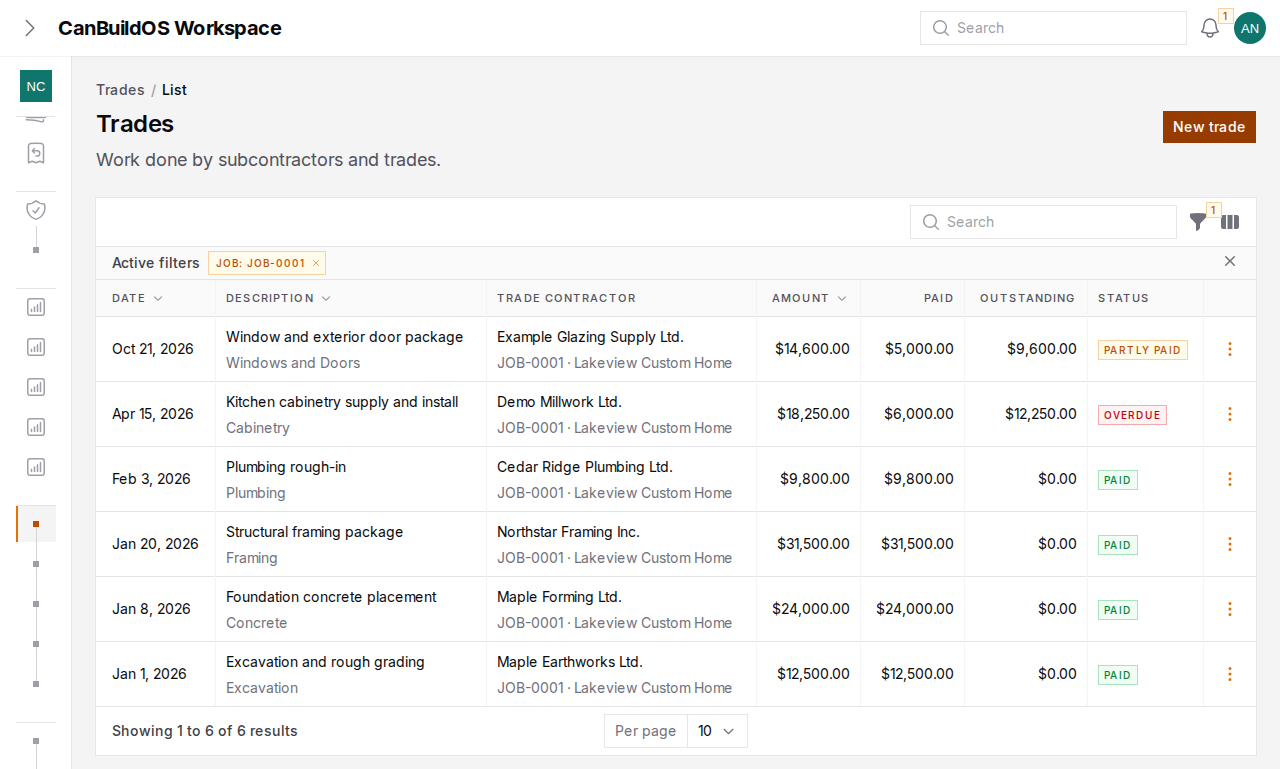
Know if a job is on budget
Build the budget in sections and lines, or import your spreadsheet. Every cost shows whether it is unpaid, partly paid, paid or overdue. -
Get estimates answered and invoices paid
Email estimates and invoices with their PDF, record your client's answer, revise when the scope changes, and record the payments you receive. -
Fewer “where are we at?” calls
Homeowners sign in to their own portal, separate from yours, to see what you choose to share. -
Keep companies apart under one login
Run work through more than one legal entity. Each one keeps its own jobs, estimates and invoices.
See it on a job
From first estimate to final invoice
Send the estimate, record the answer, track every cost against the budget, then invoice and record what you are paid. Each step stays on the job, so the numbers are always in one place.
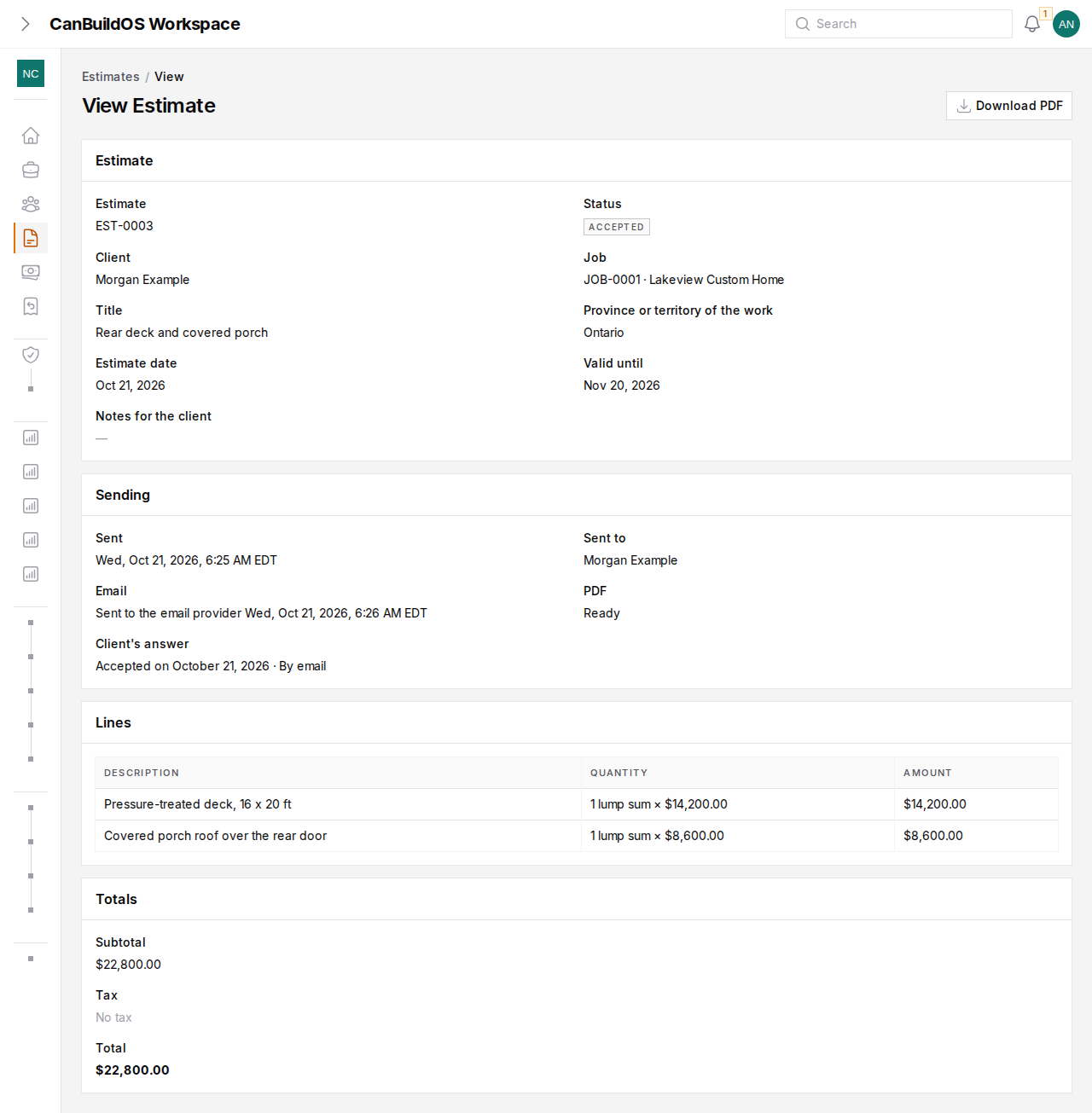
An estimate, answered
- Its status: accepted
- When it was sent, to whom, and its PDF
- Your client's answer
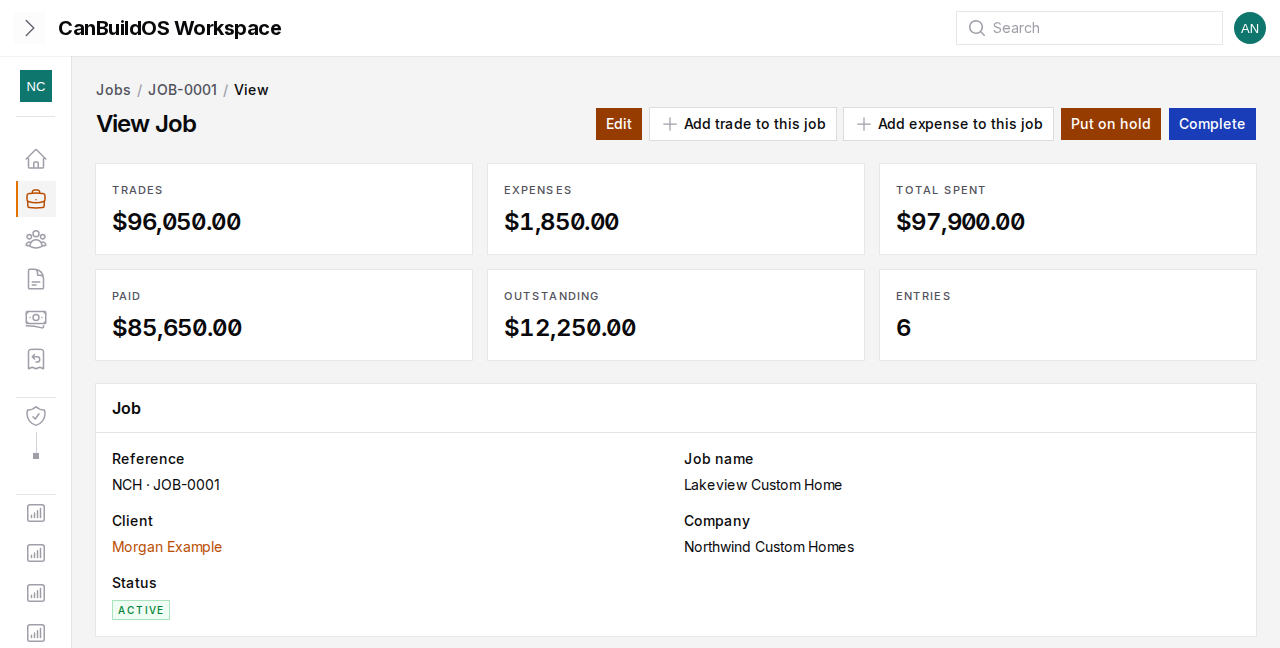
The job at a glance
- What has been spent on the job
- What is paid and what is still outstanding
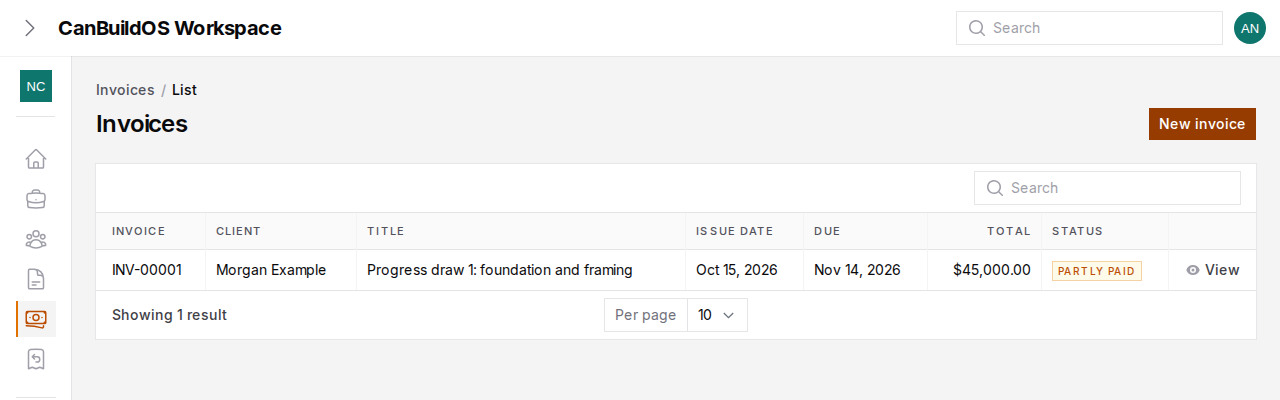
Invoices and payments
- An invoice, partly paid
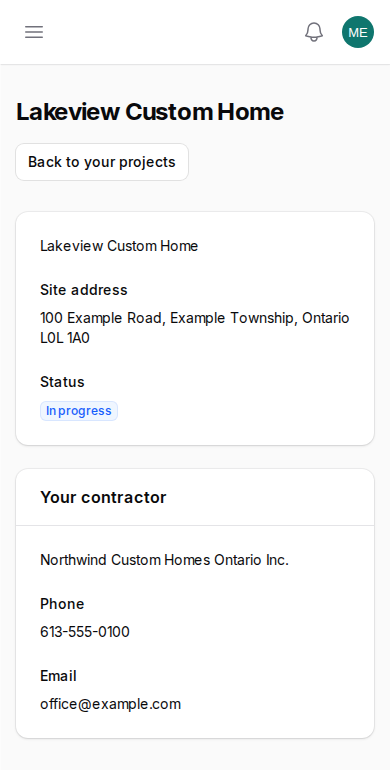
The client portal
Give clients answers before they ask
Homeowners get their own sign-in, at a separate address from your workspace. They see what you choose to share; your costs and notes stay with you.
Getting started
How it works
-
Step 1
Set up your company
Add your company and, if you run more than one, each legal entity.
-
Step 2
Build the budget, or import it
Create a job and build its budget in sections and lines, or import it from a CSV or XLSX spreadsheet.
-
Step 3
Record costs, send estimates and invoices
Record trades, expenses and payments, and email estimates and invoices with their PDF.
Security
Security and your data
- Your project data is stored in a database hosted in Canada (Laravel Cloud, Canada Central region).
- Two-factor sign-in is built in. Company owners, consultants on owner-builder projects and platform administrators must use it.
- Platform administrators and homeowners each sign in at their own separate address.
- No ads and no trackers on this website.
FAQ
Questions
Who is CanBuildOS for?
Ontario contractors and renovators who run several jobs at once, through one company or several, and people building their own home.
Can I bring in my existing budget?
Yes. Import a job's budget from a CSV or XLSX spreadsheet, or build it in sections and lines.
Will my client see my costs?
Only what you choose to share. Homeowners sign in to their own portal, separate from your workspace.
Can I run more than one company?
Yes. Run work through more than one legal entity under one login. Each keeps its own jobs, estimates and invoices, and team members see only the legal entities they have been given.
Is two-factor sign-in required?
Yes for company owners, consultants on owner-builder projects and platform administrators.
How do I get started?
Request access. We review each request and will be in touch.
Early access is open
Ready to see it on your next job?
We are bringing on a small number of Ontario contractors and owner-builders. Request access and we will be in touch.